
Three TV Setup
Neighborhood House Speakeasy · 3 TV Setup
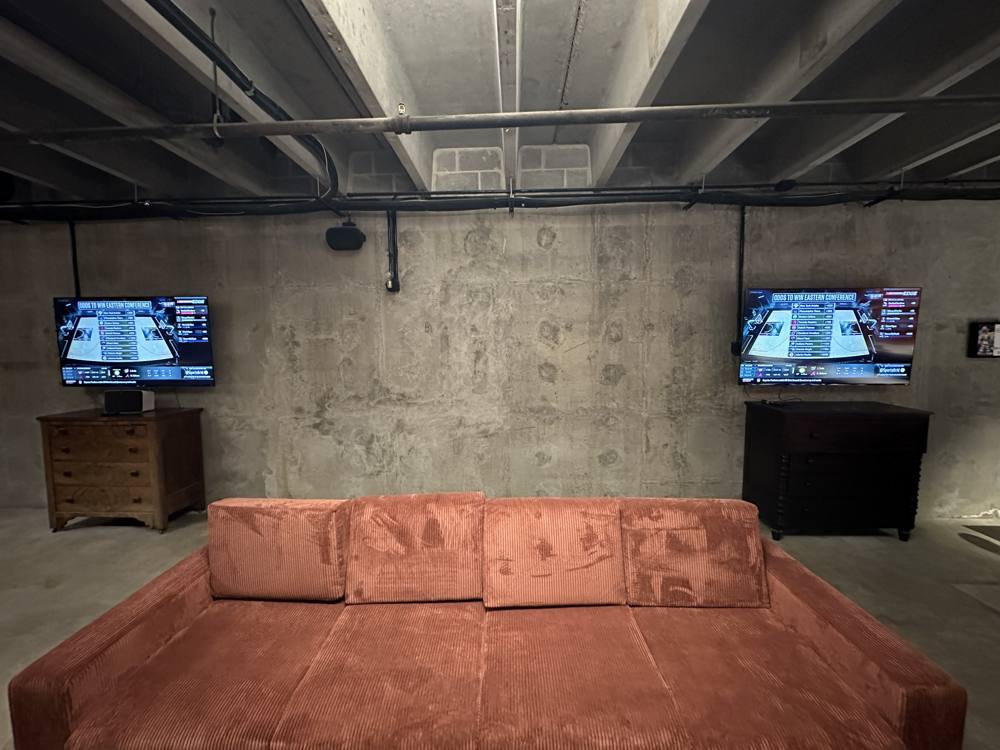
Three TVs, three remotes, one Roku stick. Follow the steps in order and all three screens will show the same live sports feed. About five minutes start to finish.
Step 1
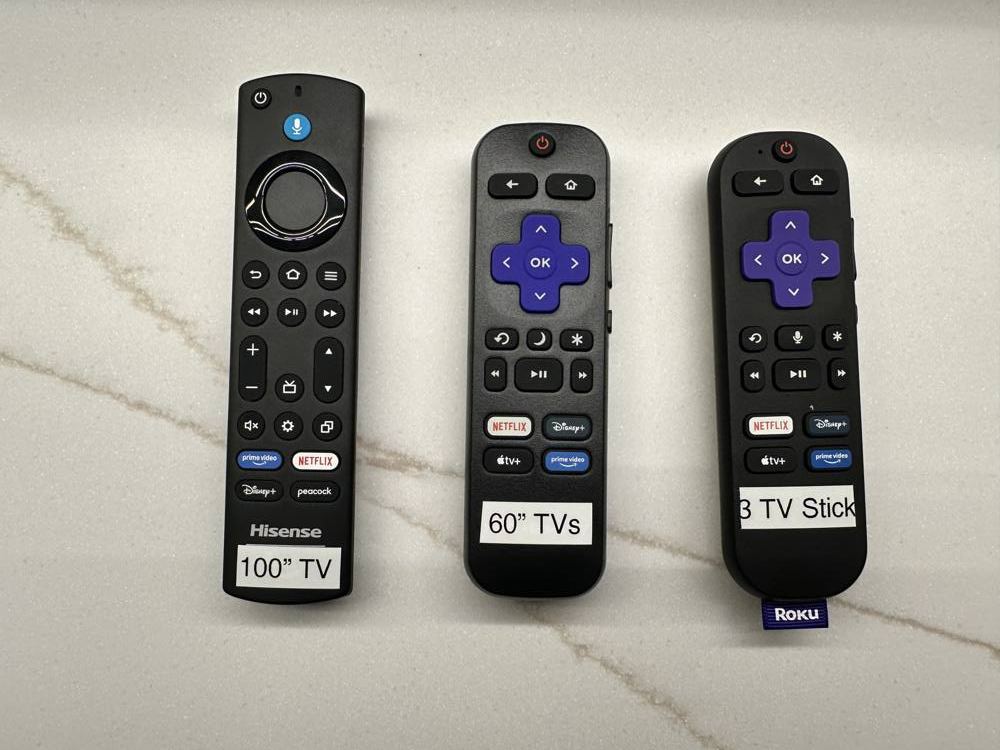
Grab the right remotes
- "100” TV" remote runs the big Hisense TV
- "60” TVs" remote runs both 60-inch Roku TVs
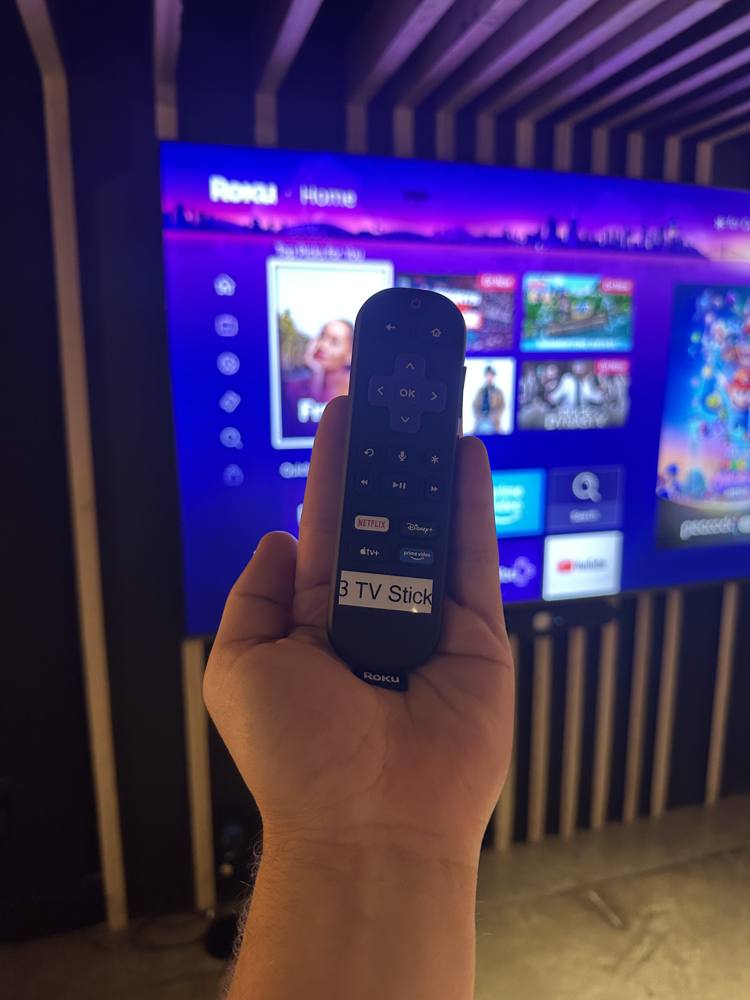
- "3 TV Stick" remote runs the Roku stick on all three screens (blue Roku flag at the bottom)
Step 2
Turn on the 100-inch TV
- Point the 100” TV remote at the big TV
- Press power
- Wait for the home screen
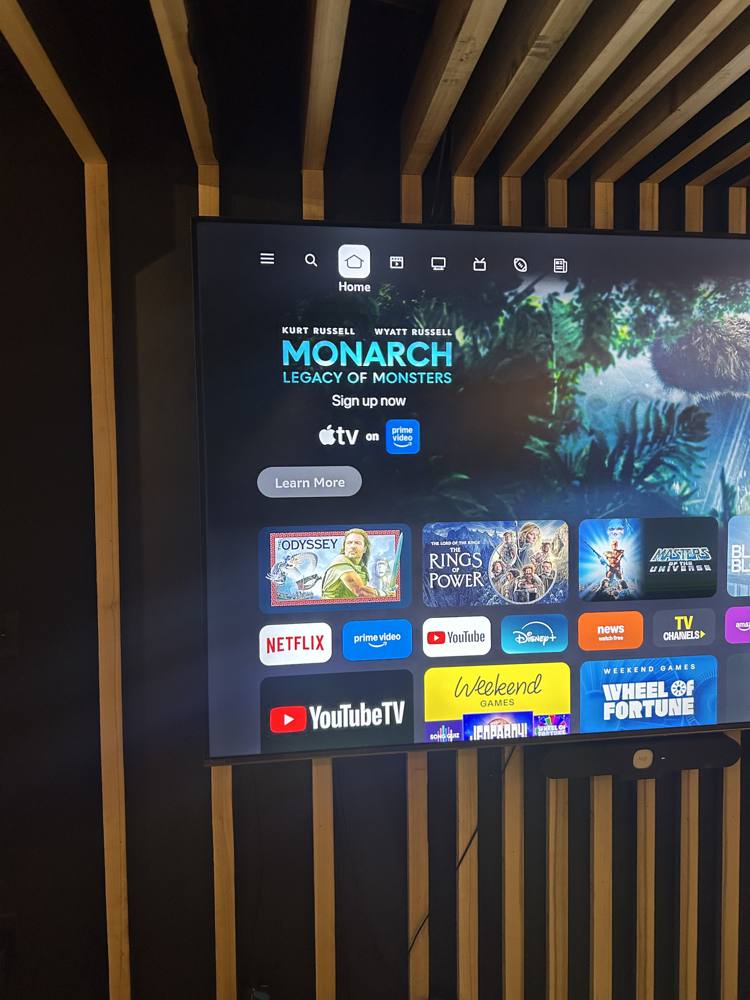
Step 3
Turn on both 60-inch Roku TVs
- Point the 60” TVs remote at the first Roku TV and press power
- Do the same on the second one
- One remote runs both TVs
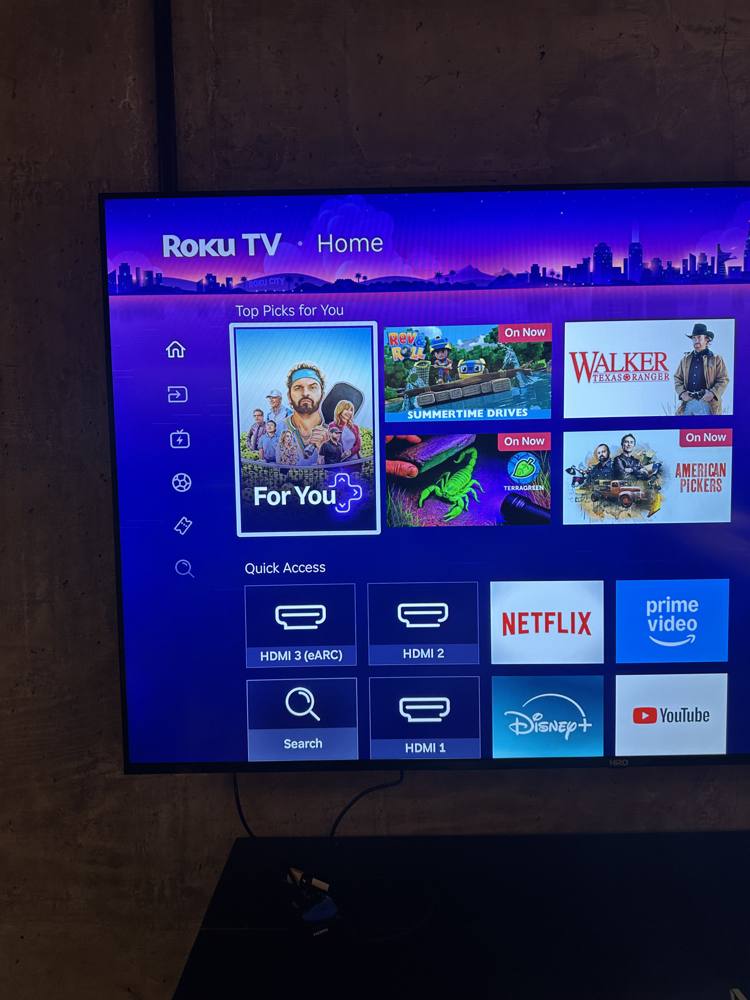
Step 4
Set all three TVs to HDMI 3
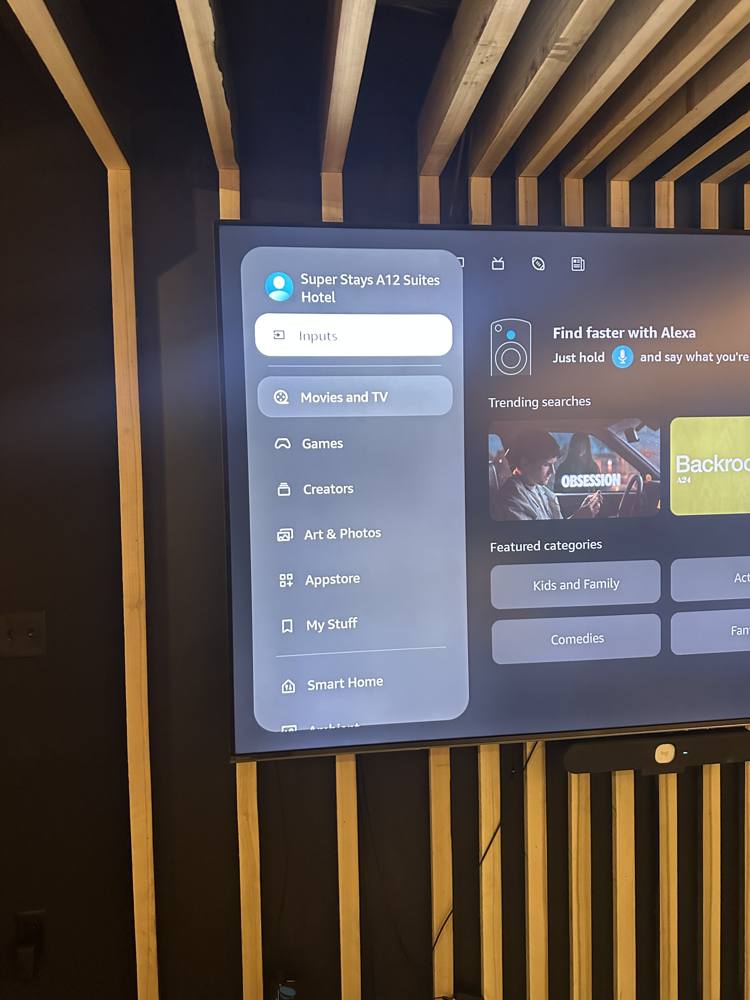
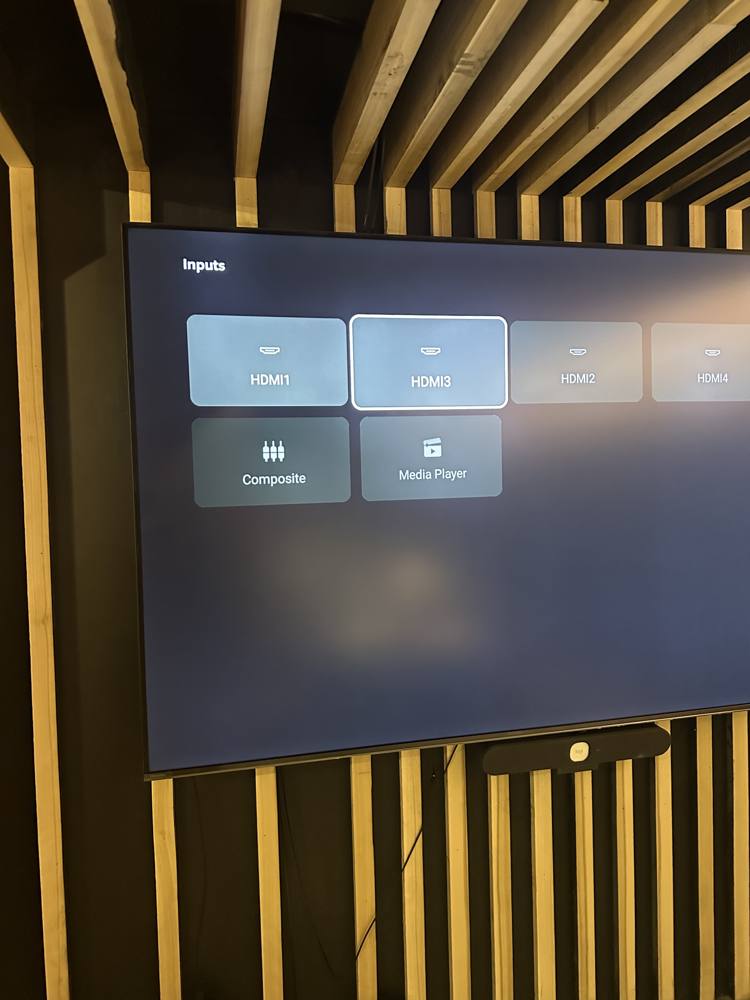
On the 100” TV
- Open the menu
- Highlight Inputs
- Select HDMI 3
On each 60” Roku TV
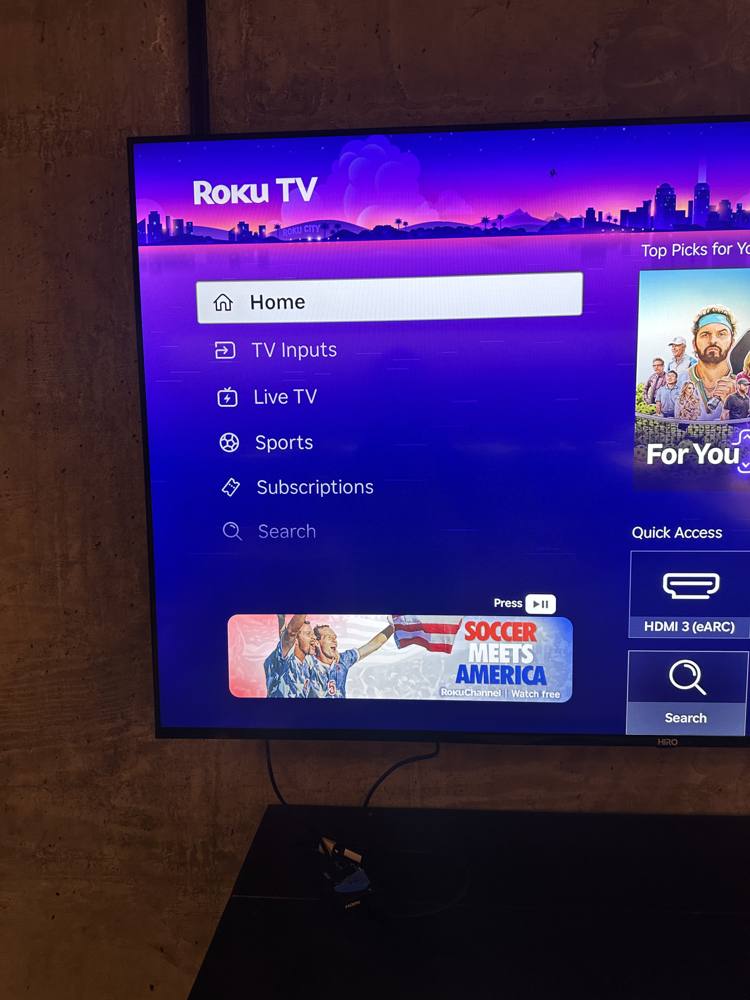
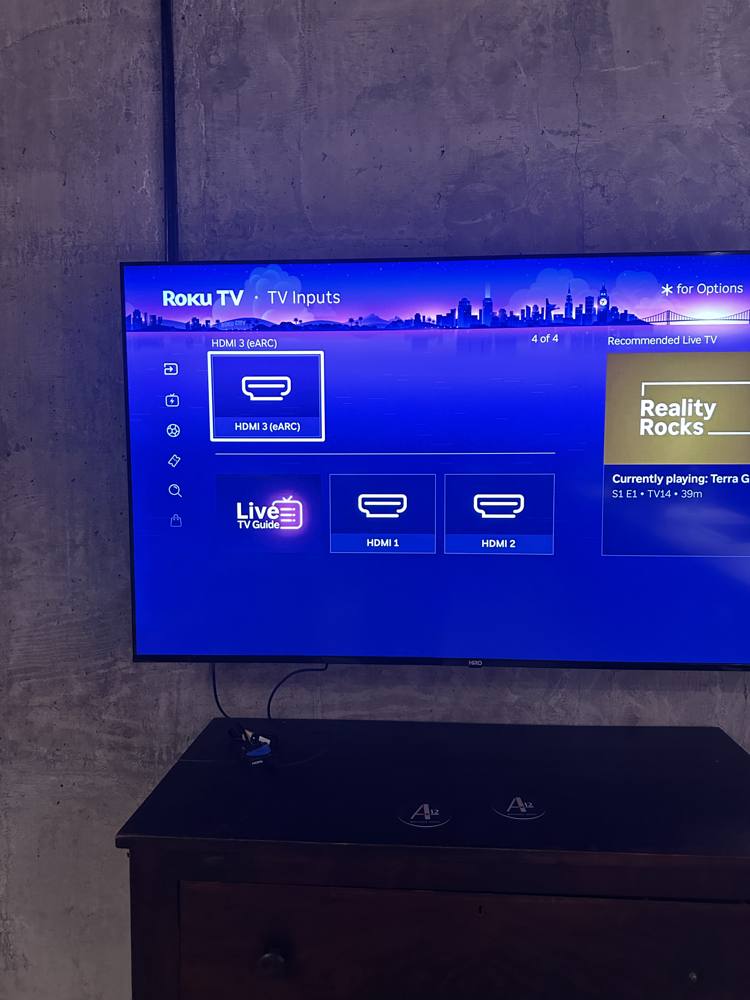
- Go to TV Inputs in the left menu
- Select HDMI 3 (eARC)
- Repeat on the second 60” TV
- Shortcut: the HDMI 3 tile under Quick Access on the home screen
Step 5
Turn on the Roku stick
- Pick up the 3 TV Stick remote (Roku flag at the bottom)
- Press any button to wake the stick
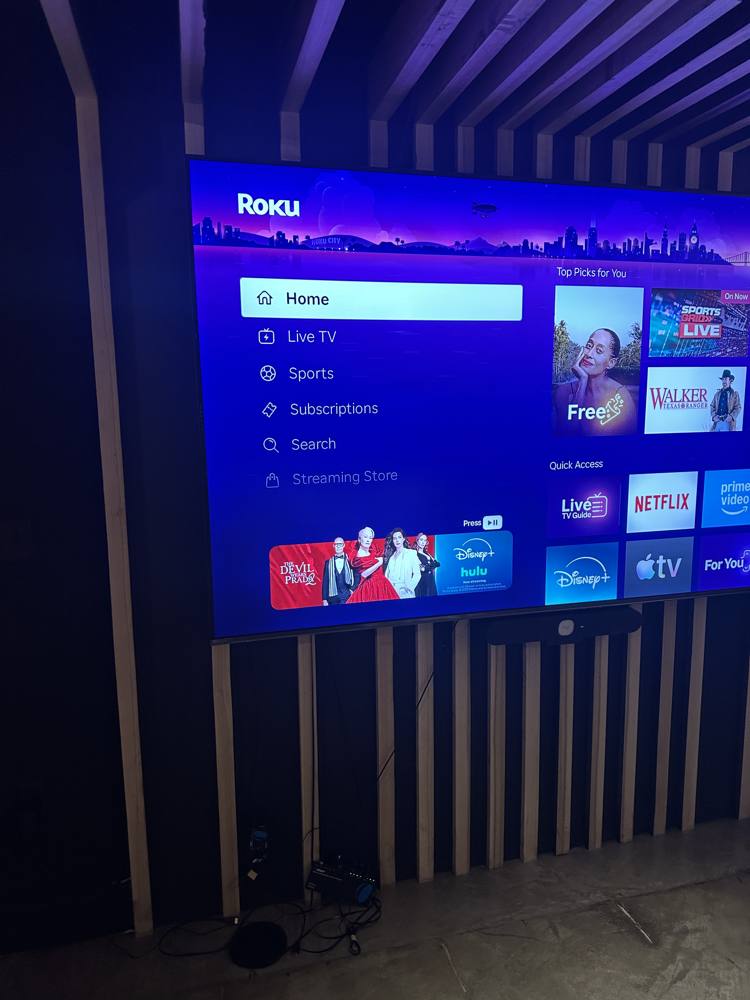
- Check that all three TVs show the same Roku home screen
- One TV different? Go back to Step 4 and recheck HDMI 3
Step 6
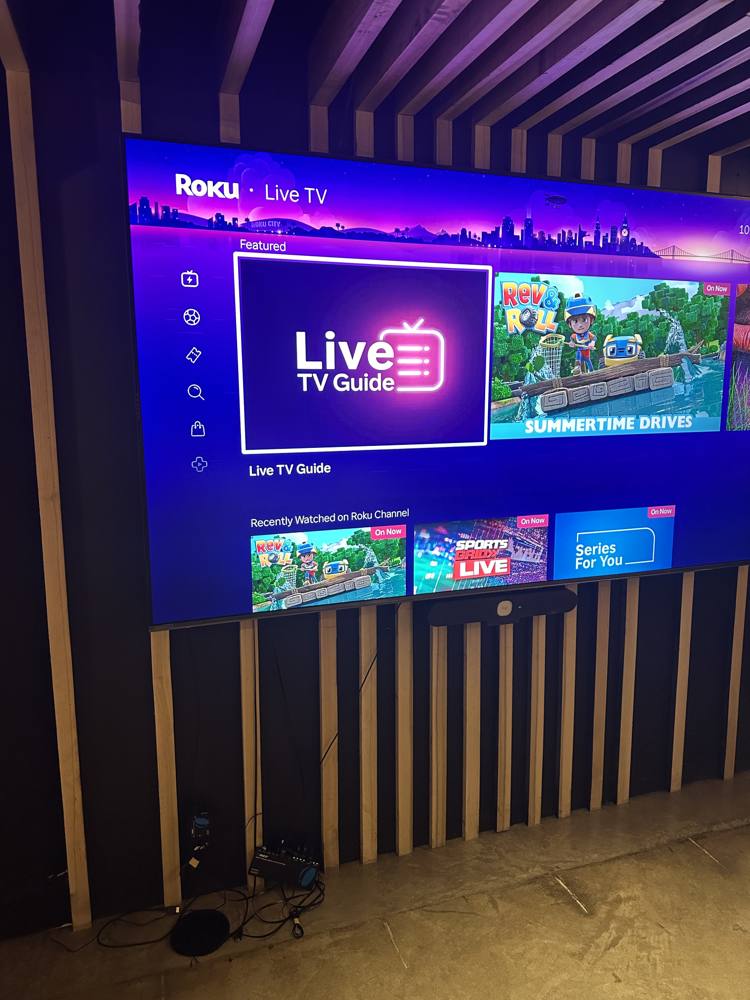
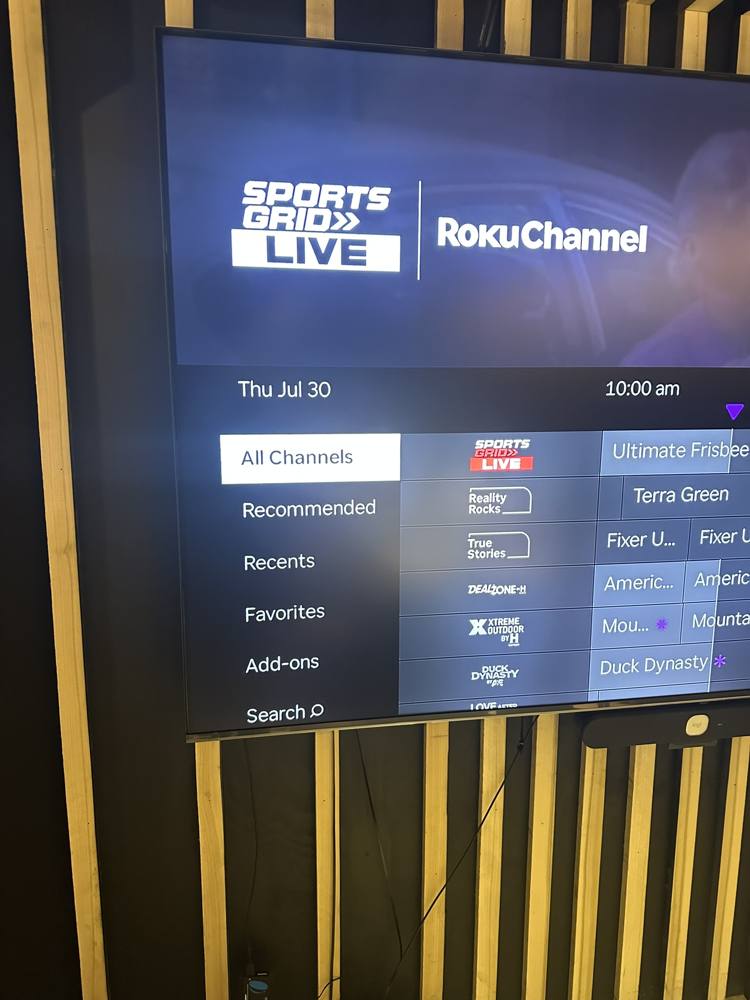
Open the Live TV Guide
- On the 3 TV Stick remote, scroll down to Live TV
- Move over to Live TV Guide
- Press OK
Step 7
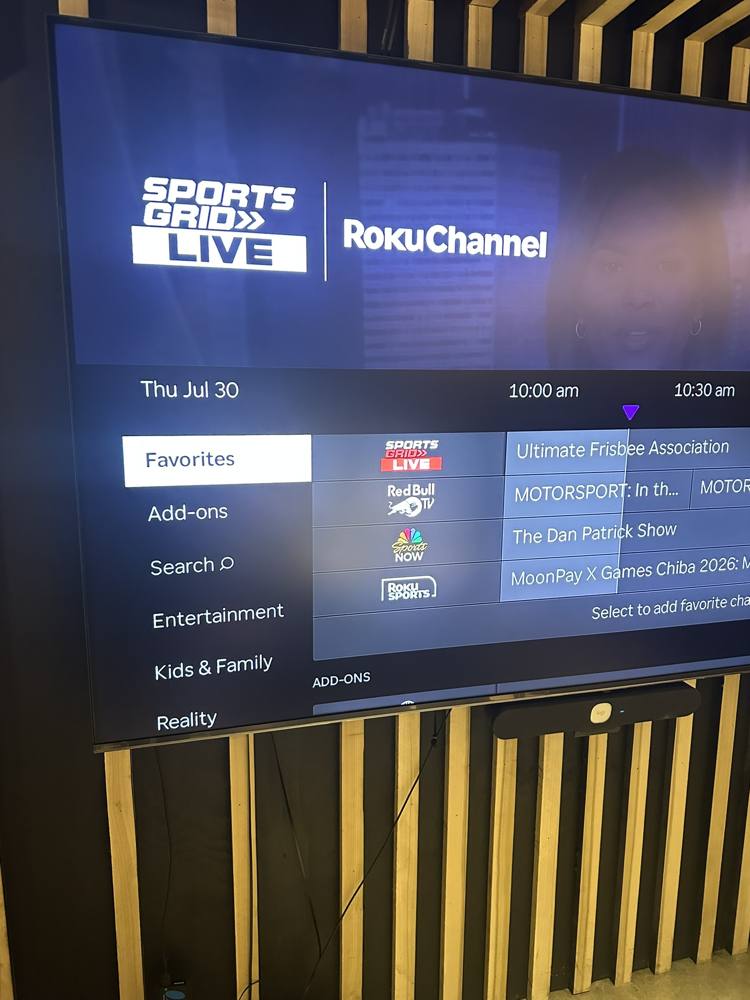
Pick a Favorites channel with live sports
- In the guide's left column, scroll down to Favorites
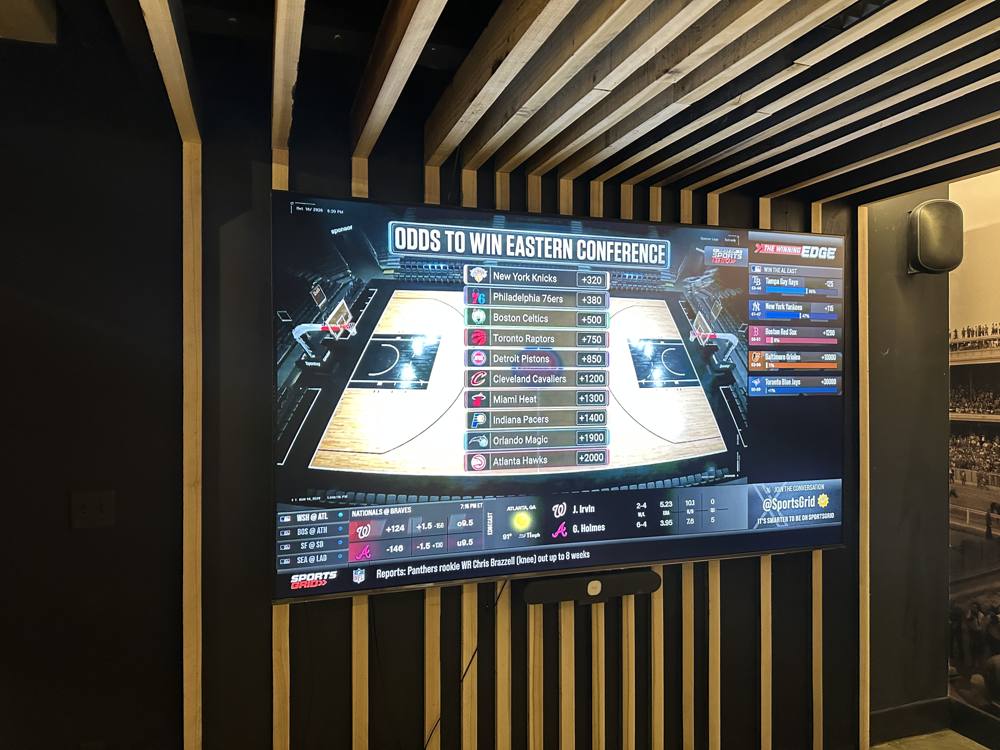
- Select any of the four channels showing live action sports
- ▸Sports Grid
- ▸Red Bull TV
- ▸NBC Sports Now
- ▸Roku Sports
Talk show on? Pick a different one of the four. Live games and action only.
Step 8
Turn the volume down on all three TVs
- 100” TV remote: volume down on the big TV
- 60” TVs remote: volume down on both Roku TVs
The 3 TV Stick remote does not change volume on any TV. Use each TV's own remote.
Do not use the mute button. Use volume down.
Where the Roku Stick Lives
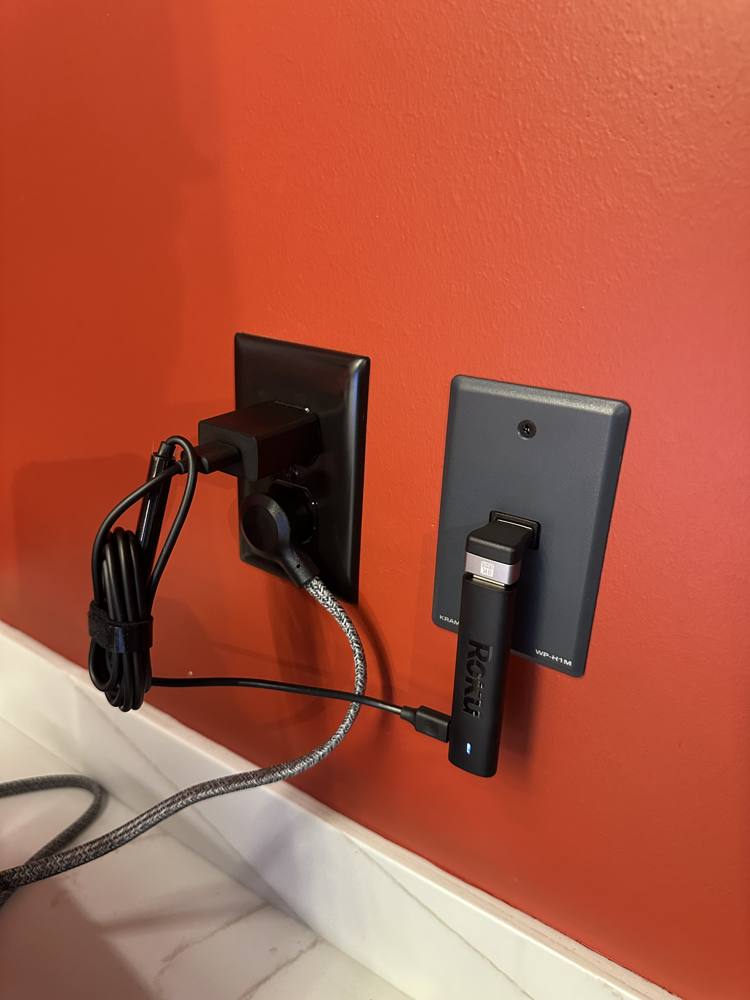
- The Roku stick plugs into the HDMI wall plate (small black plate next to the outlet on the orange wall)
- That wall plate feeds all three TVs at once
- Its power cord plugs into the outlet beside it
- Leave it plugged in like the photo below
Hooking Up a Laptop Instead
- Unplug the Roku stick from the HDMI wall plate
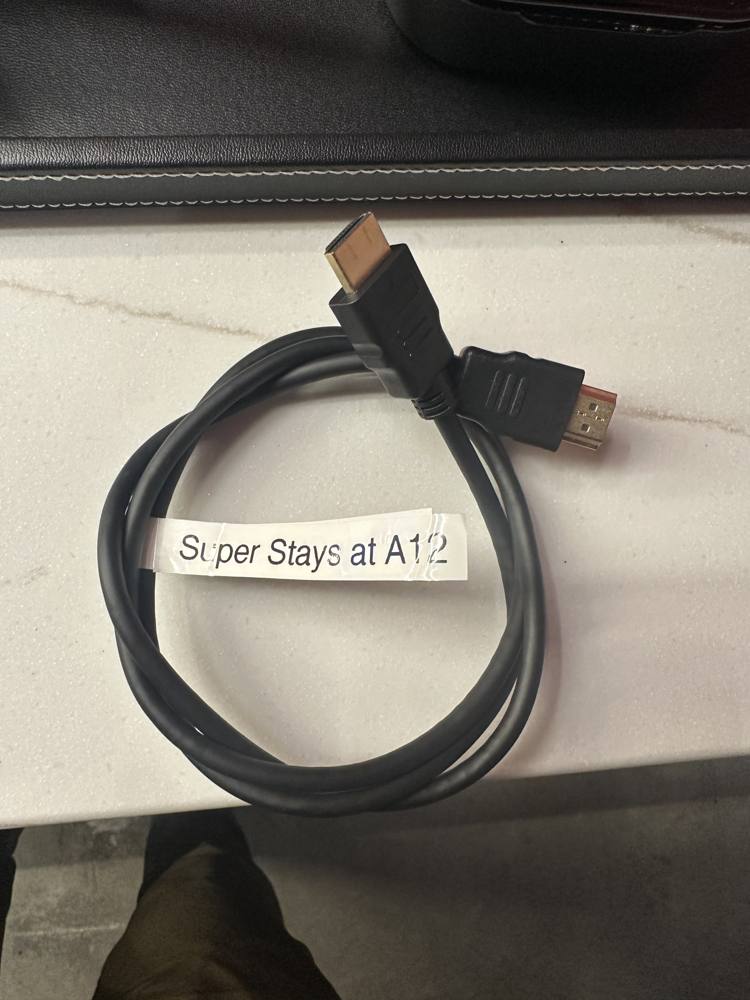
- Plug in the HDMI cord labeled "Super Stays at A12" in its place
- Plug the other end into the laptop
- The laptop now shows on all three TVs
- Done? Unplug the labeled cord and plug the Roku stick back in